
 by SEPA.gg
Capture a reference before moving
Prepare Fly Free
Connect to FH6, park safely and use a normal driving camera. Preparing Fly Free releases the previous camera mode.
Capture origin
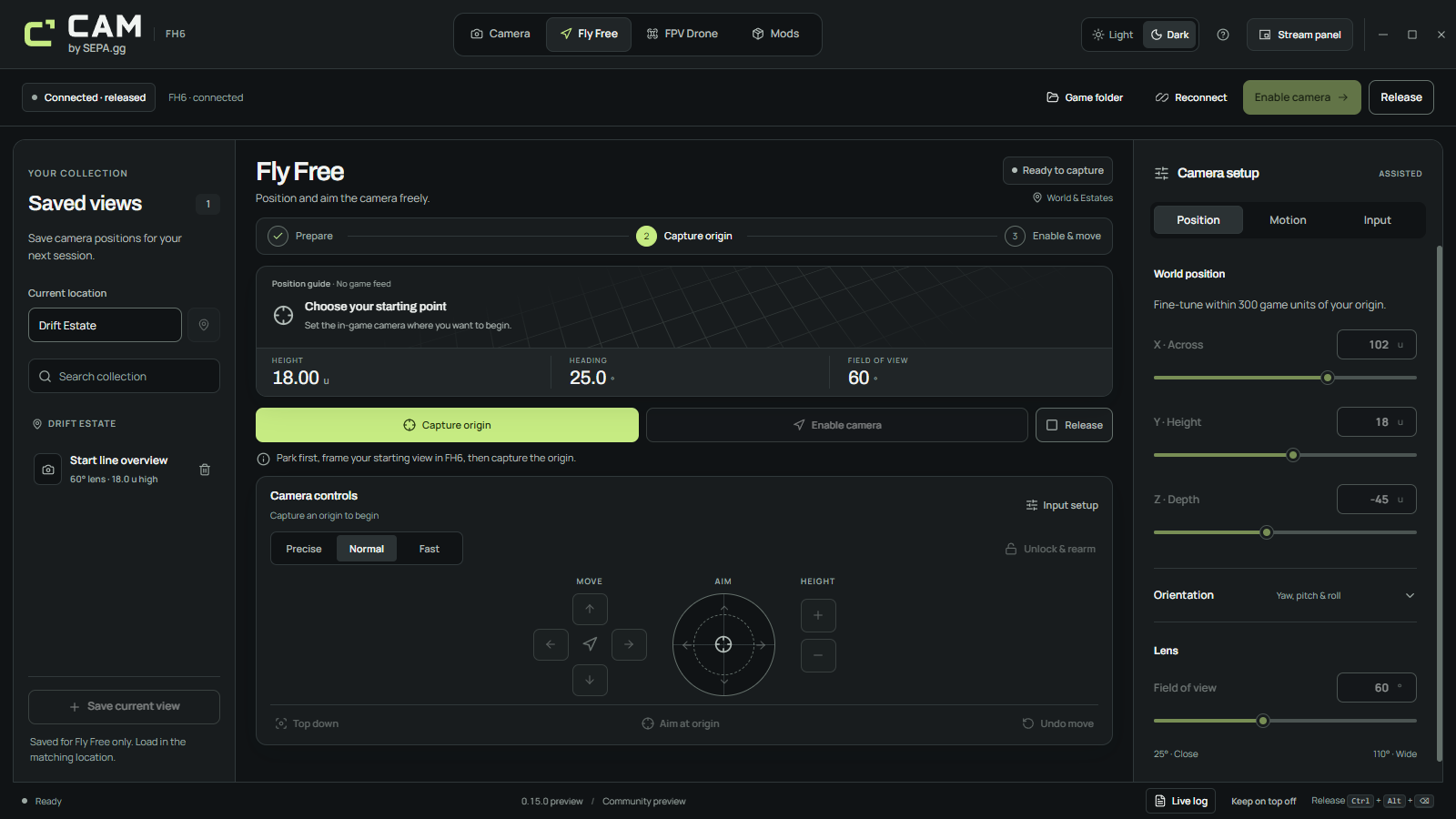
Capture the current normal driving-camera pose. This becomes your reference position and defines the movement region.
Check neutral, then enable
For the Xbox layout, center both sticks and release RT and LT. Enable camera starts assisted flight with fresh neutral input.
Choose the movement that suits the shot
Level plane moves forward horizontally while keeping your aim independent. Where you look makes forward movement follow the camera’s view. Height input remains world-up and world-down.
Start with Precise for small framing changes. Normal is useful for exploring the nearby scene; Fast covers more of the allowed region. These speeds use native units rather than calibrated metres.
Changing motion settings saves and locks flight. Resume deliberately with neutral controls when you are ready.
- Precise / Normal / Fast
- 1 / 10 / 45 native units per second
- Smoothing
- 0–2 seconds to ease movement velocity changes
- Look rate
- 10–360° per second
- Precision
- 0.15× translation and angular rate
- Boost
- 2× translation and angular rate; Precision wins if both are held
Compose a view without flying a route
Enter a position or orientation directly when a small stick movement is difficult to repeat. Undo move is a framing undo, not a recorded flight path.
- X / Y / Z
- Across, height and depth within the captured region
- Top down
- Points straight down and resets roll without changing position
- Aim at origin
- Points at the captured reference and resets roll; move away first
- Undo move
- Recalls the previous stored framing change
- Field of view
- 25–110°; judge the final result in FH6
Keep views organized by location
Fly Free views and FPV starts are separate collections. Search by view name or location. Saved views do not load an Estate, teleport the car or automatically identify your current location.
Name the location
Enter the Estate or world location manually. Changing the location label releases control.
Capture and save
After capture, use Save current view with a name. CAM stores the pose, lens and location.
Return to the same place
Travel there in FH6 and capture a fresh origin. A saved view from another location stays staged until the location and capture are ready.
Know where the movement ends
The camera must stay within 300 native units of the captured origin on each axis. The boundary locks flight. Release and capture a new origin after relocating.
There is no collision detection. Moving the camera does not guarantee that distant scenery is streamed or that every game camera class behaves the same way. Check the visible result in your current game build when moving between the open world and Estates.