
 by SEPA.gg
Before you open CAM
You need a Windows FH6 installation and the complete CAM portable app folder. Public availability is shown on the download page; a guide or screenshot is not an app download.
- Close older CAM windows before opening another build.
- Keep CAM.exe, its DLLs and supporting resources together in a writable folder.
- Close RealCam, Estate Judge and other competing camera tools before connecting.
- Start FH6, park safely and select a normal driving camera.
Open the studio and connect
Launch CAM.exe
Select your FH6 installation if needed. Choose the folder containing ForzaHorizon6.exe.
Connect to FH6
Connect establishes the session with camera control released. It does not start a camera or arm flight.
Use a normal driving view
For your first test, stay out of menus and use a familiar driving camera. Keep CAM and FH6 as the active applications during control.
Frame, compare and save
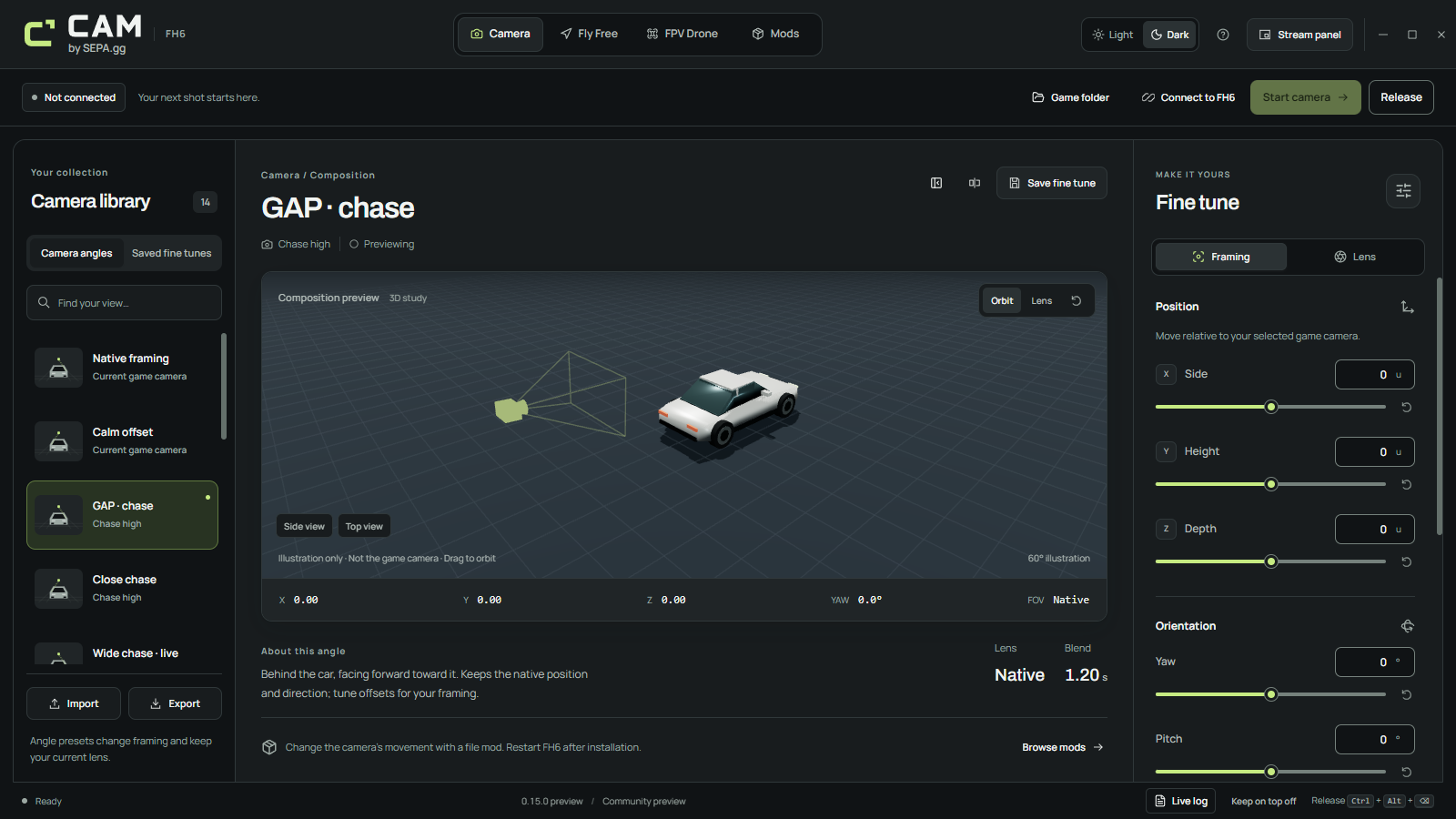
Choose Camera
Select a built-in starting angle and use Start camera. Match its suggested game view manually in FH6 when one is specified.
Adjust one thing at a time
Change position or rotation, then choose Follow game or a Fixed lens. A lower fixed FOV feels tighter; a higher FOV includes more of the scene. Check the actual result in FH6.
Save fine tune
Name the preset to store its pose, lens, blend time and suggested game view. Keep both creates a numbered copy; Replace keeps the previous file in history.
Compare or export
Compare previous camera recalls the previous angle and lens. Export writes a .live.json preset you can keep or share. Import previews a compatible file without changing the live camera.
Move from a driving angle to flight
Prepare Fly Free for assisted movement or Prepare FPV Drone for Acro flight. Preparing releases the previous mode. Capture a fresh origin from a normal driving camera, verify neutral input, then enable or arm deliberately.
On an Xbox pad, FPV RT throttle needs RT fully released and both sticks centered. Mode 2 needs the left stick held fully DOWN, with live throttle at 0%. A centered Mode 2 stick is roughly 50% throttle and prevents arming.
Finish the session and keep your work
Release returns camera control to FH6 and clears a flight origin. Capture again before restarting flight. Closing CAM also releases control.
Keep live-presets, flight-views, studio-data and backups when you move or upgrade the app. Keep logs when diagnosing a problem, and close CAM before copying its data folders.
- Lock
- Holds framing and requires an explicit resume
- Release
- Returns control to FH6; clears the flight origin
- Ctrl + Alt + Backspace
- Global release when the shortcut has registered
- Escape
- Closes an open dialog first; otherwise releases while the main studio is focused