
 by SEPA.gg
Select the Windows XInput device
Choose the Xbox / XInput entry over a duplicate generic joystick entry to preserve independent trigger readings. Applying a layout resets the selected slot’s axes, calibration, response and buttons, saves them, and locks flight.
Connect your pad to Windows
USB is a useful starting point for the first test. CAM needs the controller to appear as a Windows input device.
Prepare your flight mode
Choose Prepare Fly Free or Prepare FPV Drone. Open Input → USB radio / gamepad, refresh devices and select Xbox / XInput.
Review the layout
A new XInput slot starts with the recommended layout. A saved slot restores its existing mapping. Previewing another layout changes nothing until you press Apply Xbox layout.
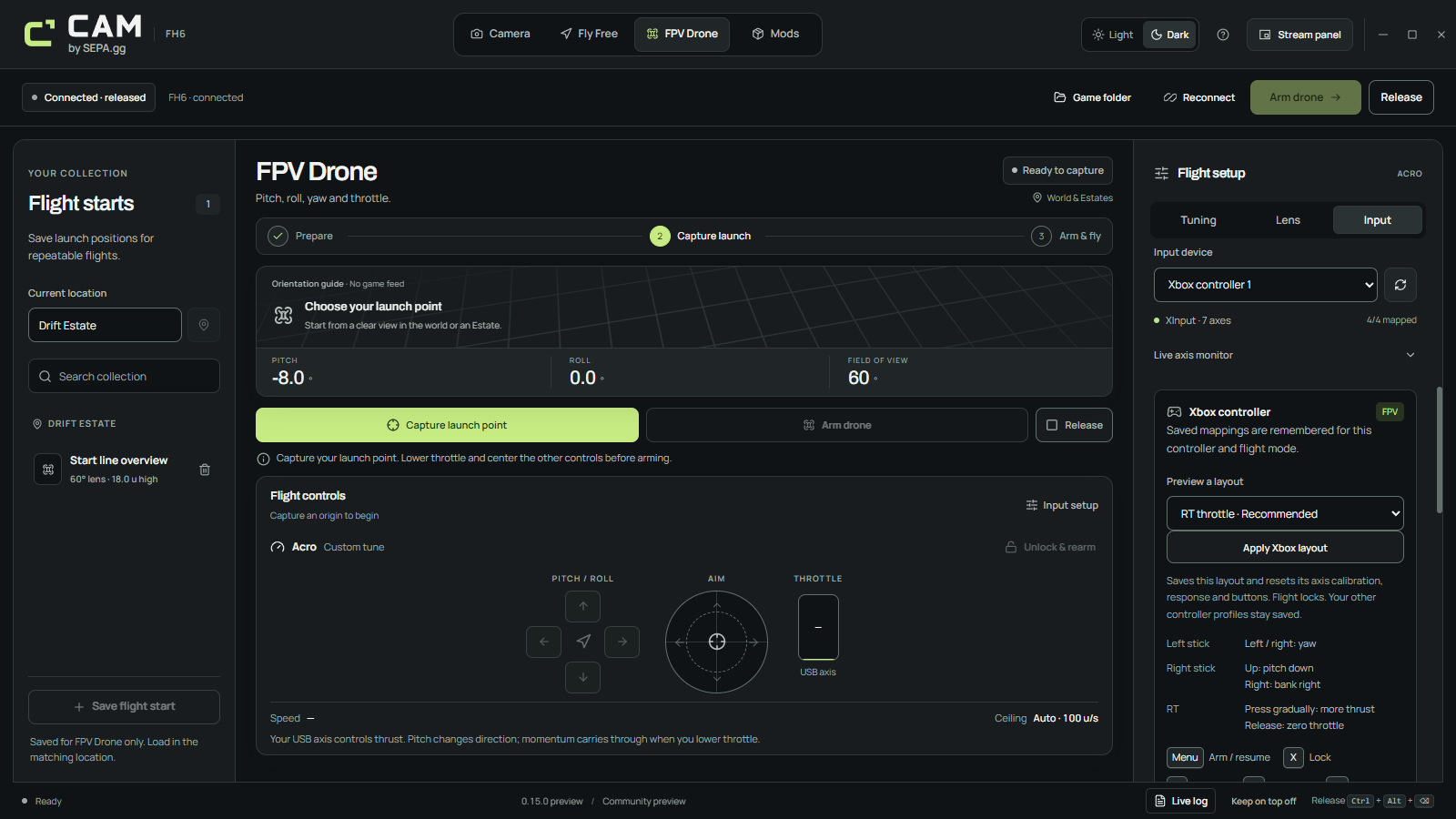
Recommended FPV layout: RT throttle
After arming, increase RT gradually. Releasing RT gives zero throttle, not hover: the Acro model still applies gravity.
- Left stick left / right
- Yaw
- Right stick up / down
- Pitch down / up
- Right stick left / right
- Bank left / right
- RT
- Continuous throttle from 0% to 100%
- LT
- Unassigned
Optional FPV layout: Mode 2
Preview Left-stick throttle, then press Apply Xbox layout. Yaw, pitch and bank stay on the same axes; left-stick up/down now controls throttle.
Center the yaw, pitch and roll axes. Once armed, raise throttle gradually. Check the live percentage instead of assuming that a physically centered control is neutral.
Fly Free layout: move and aim
The triggers subtract from one another. Equal pressure produces no vertical command. Capture a fresh origin before enabling Fly Free.
- Left stick
- Move forward, back and sideways
- Right stick
- Aim horizontally and vertically
- RT / LT
- Rise / descend
- Neutral
- Center both sticks and fully release both triggers
Buttons and deliberate rearming
Release Menu before pressing it again. Holding it through an interruption will not rearm. A device change, saved mapping, reconnect or input setup leaves flight locked until you explicitly resume.
CAM does not suppress FH6 input. Shared buttons, sticks and triggers may also move the car or open game menus. Park safely and use suitable separate or unbound driving controls.
- Menu
- Arm or resume with a captured origin and fresh neutral input
- X
- Lock the current framing
- B
- Release control to FH6
- LB
- Hold Precision
- RB
- Hold Boost
If an axis or reconnect behaves differently
Confirm your Xbox layout in a short, parked first session. For a USB radio, use its Windows PC joystick mode; a USB connection alone does not establish compatibility with a proprietary controller mode.
Inspect mapped and raw output
Raw input shows the hardware reading. Mapped output includes calibration, inversion, deadzone and expo. Sweep throttle from low to high and check for a gradual 0–100% range.
Detect only when ready
Select a channel, press Detect movement, then move the intended control. Selecting a channel alone never starts detection. Cancel or Escape stops listening.
Calibrate and save
Capture neutral or throttle-low, sweep the full range, finish calibration and Save mapping. Learning does not save or arm automatically.
Check the XInput player slot
Profiles use four Windows player slots, not controller serial numbers. A pad returning in a different slot uses that slot’s profile; two pads using the same slot share it.