
 by SEPA.gg
A deliberate first flight
Prepare FPV Drone
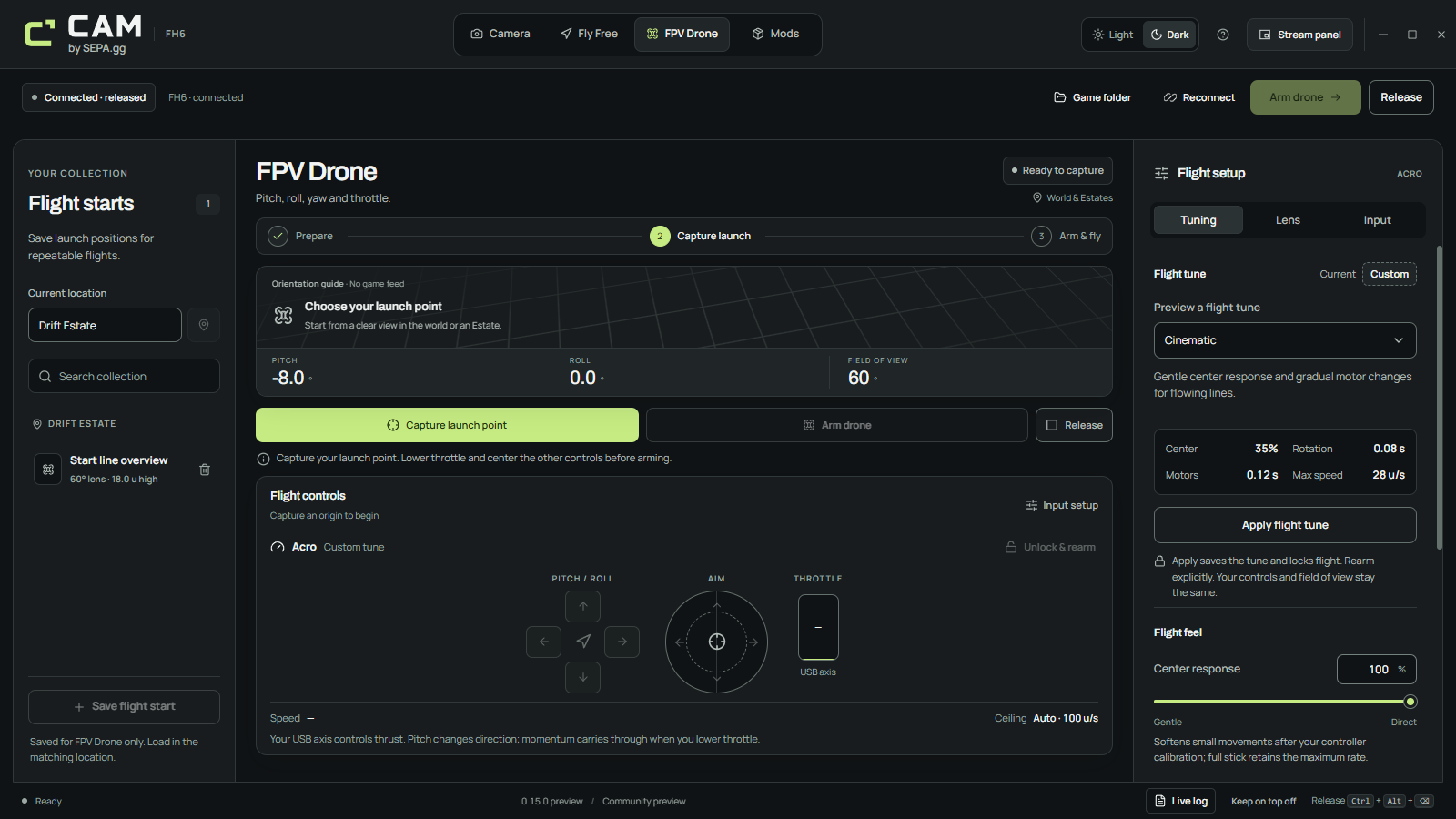
Connect to FH6 from a parked car and a normal driving view. Prepare FPV Drone, then Capture origin. Preparing a mode releases the previous mode.
Verify your controls
Select your controller and check mapped pitch, roll, yaw and throttle. Start with the Xbox RT layout if you are using a spring-centered gamepad.
Arm at zero throttle
RT layout: release RT and center both sticks. Mode 2: hold left stick fully DOWN while centering the other rotation axes. Confirm live throttle is 0%, then click Arm drone.
Add thrust gradually
Make small inputs and watch the actual camera in FH6. Lock when you need to hold framing. Release returns control to the game and clears the origin.
Throttle controls thrust, not altitude
Pitch, roll and yaw rotate the drone body. Thrust acts along its body-up direction, while gravity pulls down. Banking or pitching changes where that thrust sends you.
Acro keeps its attitude when you center the rotation sticks. It does not automatically level. At zero throttle, gravity remains active; increasing throttle while tilted can build horizontal speed as well as lift.
Momentum persists until thrust, gravity, drag or the speed limit changes it. For an assisted camera that is easier to place and hold, use Fly Free.
Apply a starting tune
Previewing a tune does not apply it. Press Apply flight tune to save it. Applying locks flight and preserves your input mapping and FOV. A new profile can show Custom while the preview selector shows Cinematic.
Restore previous tune is available after applying a tune in the current session. Manual flight-feel changes save and lock flight; rearm deliberately after checking your controls.
- Cinematic
- Gentler center response and gradual motor changes for flowing lines
- Freestyle
- Faster rotation and more direct motor response
- Chase
- Responsive manual following with smoothing; no automatic tracking
Change the setting that matches the problem
Maximum speed 0 means Automatic with a 100 native-unit/second ceiling. An explicit ceiling is 1–100. Fly Free speed tiers do not set the FPV ceiling.
Precision and Boost scale body rotation only in FPV. They do not change thrust, momentum or Maximum speed. A mapped USB throttle owns throttle; the keyboard Space command cannot override it.
- Too abrupt near center
- Reduce Center response or add rotation smoothing
- Thrust changes feel too sudden
- Increase Motor response; zero follows throttle immediately
- Rotates too quickly
- Lower pitch, roll or yaw rates; each has a 30–720°/s range
- Throttle feels equally fast
- Check the live throttle sweep and Maximum speed ceiling
- Need more forward view
- Adjust Camera up-tilt, from 0–45°, and verify framing in FH6
Save the start, respect the boundary
Enter the current location manually and save a named flight start after capture. Load it at the matching location with a fresh origin. A start from elsewhere is staged until you travel there and capture again. It does not teleport your car or replay a recorded route.
Flight is limited to 300 native units from the origin on each axis. Reaching the boundary locks flight. There is no collision detection, and native units are not calibrated metres. FH6 scenery streaming and scene transitions can affect the visible result.