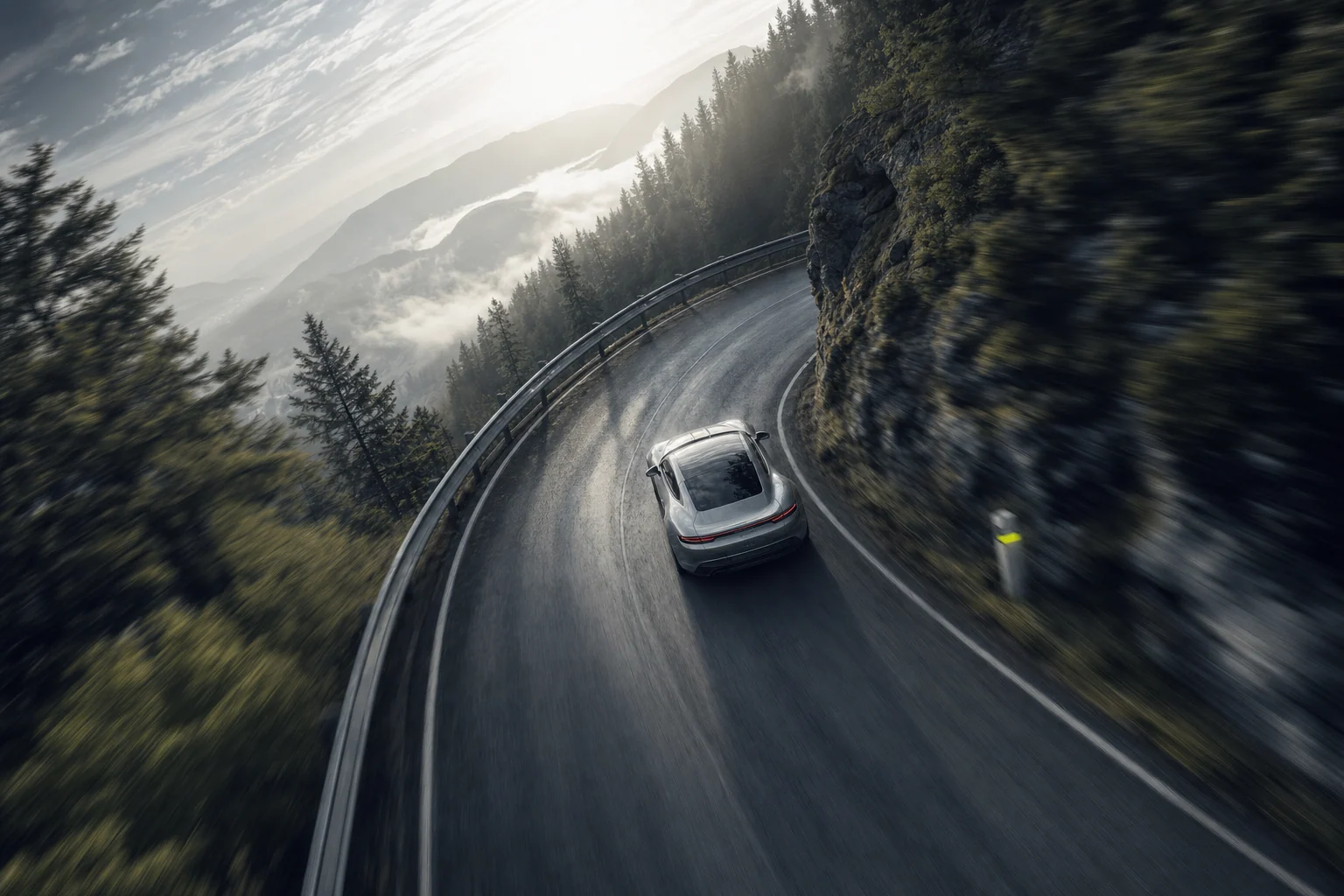
Generated cinematic scene of a sports car in a Japanese driving environment
CAM · FORZA HORIZON 6 CAMERA TOOLS

Your game.
Your angle.

Live camera angles, free flight and FPV drone controls for Forza Horizon 6. Also works in Estates.

Live camera framing. Assisted flight. Acro FPV.

Generated launch artwork

One studio.
Four ways to make it yours.

From a low chase angle to a flight through your Estate. Choose the workspace that fits the shot.

Find your signature angle.

Start with a built-in angle, then make it yours. Adjust position, rotation, lens and transitions while camera control is active.

  • Live framing and field of view
  • Save, import and export fine-tuned presets
  • Built-in angles preserve your current lens
Camera reference
Camera App interface · demo data
A DIFFERENT PERSPECTIVE

Get a feel for the frame.

Orbit the scene. Follow a path. Open the lens. A hands-on way to explore the relationship between angle and field of view.

Preparing the interactive camera lab…

The whole setting
is part of the shot.

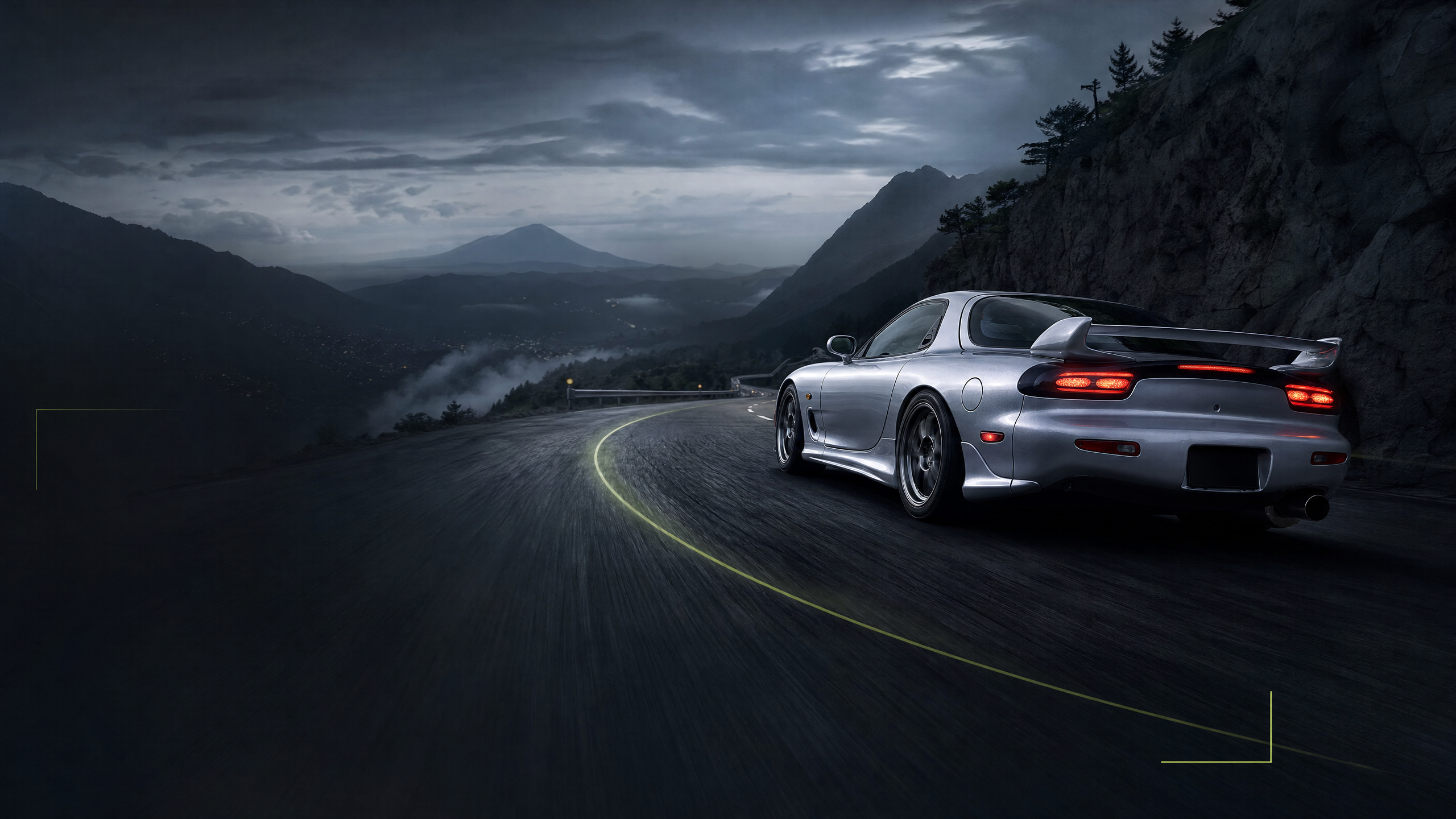
Generated FPV launch concept following a sports car through a Japanese driving scene

Follow the line.

Acro keeps its bank when the sticks center. Use pitch, thrust and momentum to shape a flight.

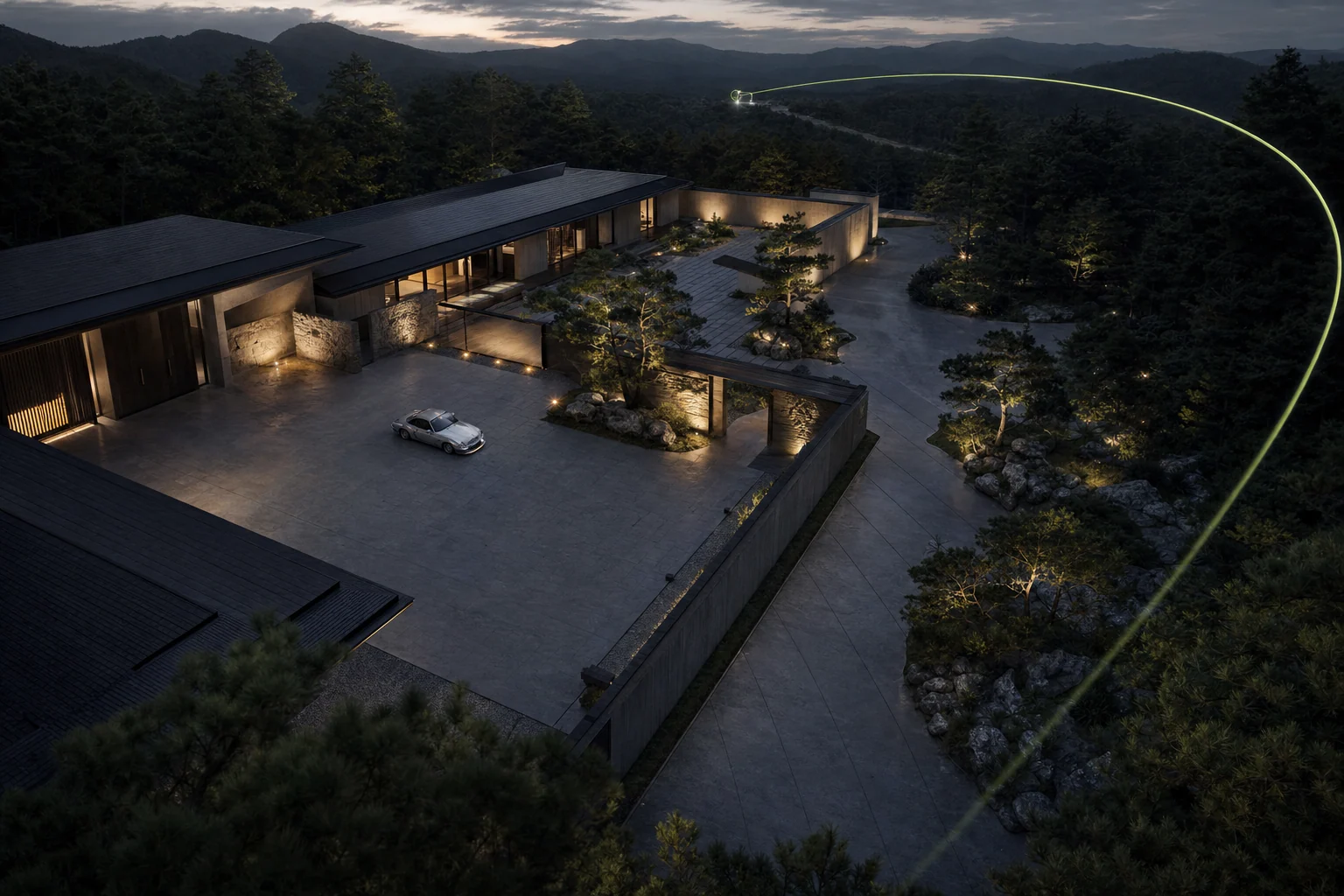
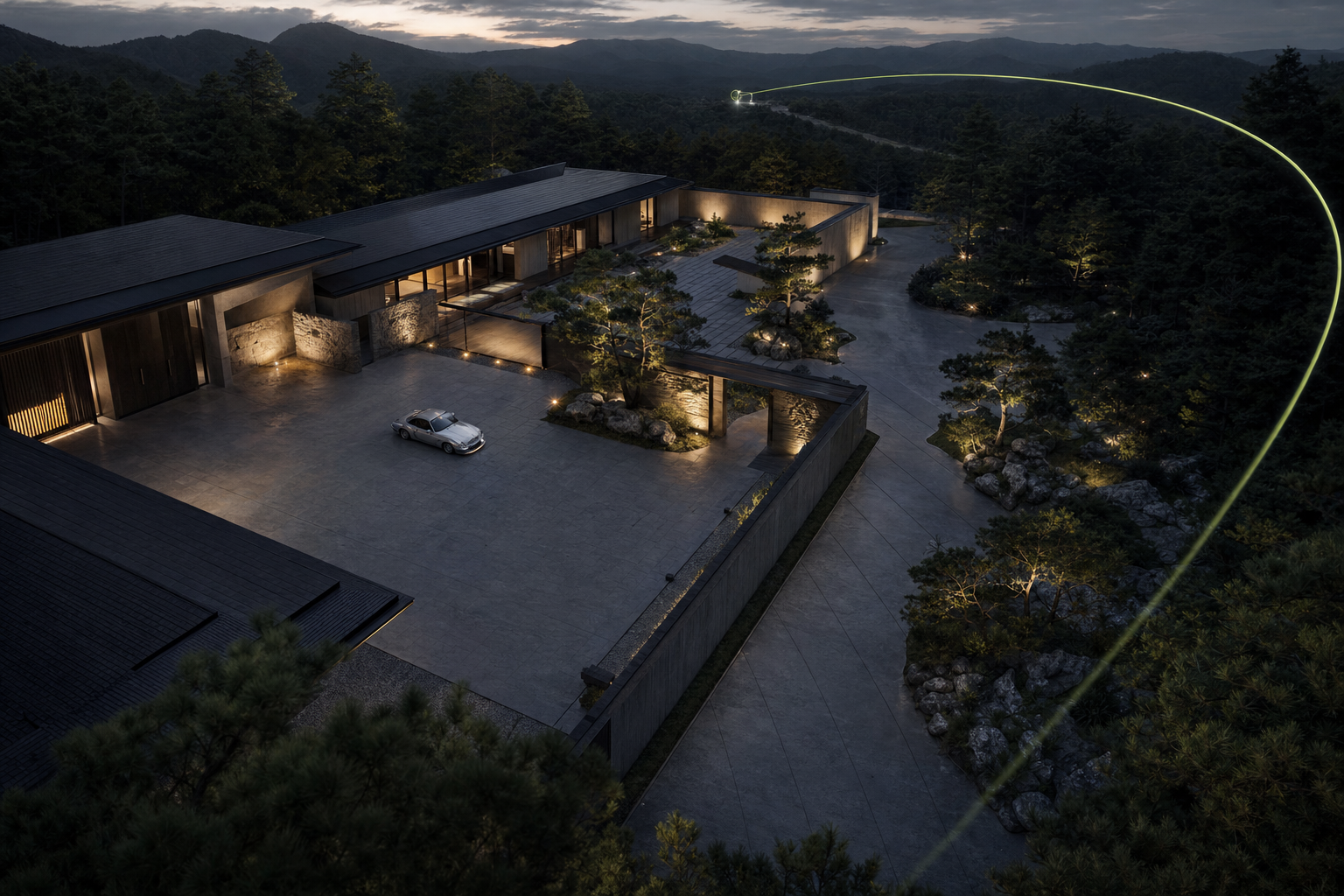
Generated launch concept of an elevated view across a custom driving Estate

See your Estate differently.

Fly Free is designed for the world and Estates. Capture an origin, frame a view, and save it by location.

Generated concept scenes. Flight has no collision detection; distant scenery depends on FH6’s world streaming.

Less setup.
More time behind the lens.

Start with the guide that fits your next shot.

YOUR FIRST SESSION

A good shot starts here.

Keep the whole app folder together. Start from a parked car and a normal driving view.

  1. 01

    Open the studio

    Close older CAM windows. Place the unpacked app in a writable folder, keeping its DLLs and resources beside CAM.exe . Open it and select your FH6 installation if needed.

  2. 02

    Connect to FH6

    Start FH6, park safely and select a normal driving camera. Close competing camera tools, then choose Connect in CAM.

  3. 03

    Choose your first shot

    In Camera , select an angle and press Start camera . For flight, prepare Fly Free or FPV Drone , capture an origin and check the arming position for your layout before enabling or arming.

  4. 04

    Fine tune, then save

    Adjust the frame and lens. Use Save fine tune for camera presets, Save current view for Fly Free, or Save flight start for FPV. Release gives control back to FH6.

Your controller.
Your flight style.

Xbox layouts give you a starting point. Every supported axis, action and keyboard binding can be remapped.

Connect an Xbox pad

  1. Connect to Windows, preferably by USB for the first test.
  2. Prepare the flight mode. Open Input → USB radio / gamepad , refresh, then select the Xbox / XInput entry.
  3. A new entry starts with the recommended layout. Existing mappings are kept. Apply Xbox layout resets the selected device to the previewed layout.
  4. Capture an origin. For Fly Free, center both sticks and release both triggers before enabling. For FPV Drone, use the arming check below.

A natural start for Xbox pads.

Recommended for a spring-centered controller. Fully release RT and center both sticks. Confirm live throttle reads 0% before clicking Arm drone.

In this layout, releasing RT lowers throttle to 0%; pulling the left stick down does not lower throttle. Zero throttle is not hover: gravity still acts in Acro.

Left stick
Left / right → yaw
Right stick
Up / down → pitch down / up
Right stick
Right / left → bank right / left
RT
Continuous throttle, 0-100%
Arming position
RT fully released → throttle 0%
LT
Unassigned

The buttons stay familiar.

Menu

Arm / resume

Capture first. FPV: release RT or hold the Mode 2 left stick fully DOWN, with live throttle at 0%. Center the other axes, then press and release Menu.
X

Lock

Freeze the framing. Return to the arming position for your layout, then Menu resumes.

B

Release

Return camera control to FH6. Capture again before restarting.

LB

Precision

Hold for finer control.

RB

Boost

Hold for a faster response.

A, Y, View, stick clicks and D-pad start unassigned. These are defaults, not fixed bindings.

Xbox input setup App interface · demo data
Keyboard & mouse quick reference

Fly Free

Move
W A S D
Rise / descend
E Q
Aim
Arrow keys
Roll
Z C

FPV Drone

Pitch
↑ ↓
Yaw
← →
Roll
Z C
Full throttle
Space

Space supplies full throttle in Acro only when no USB throttle axis is mapped. A mapped axis owns throttle; check its live percentage in the flight console.

Ctrl Precision Shift Boost F9 Pause F10 Lock F12 Emergency release

Optional mouse aim uses right-button hold. The pointer stays visible and free. Enable it, set sensitivity and remap keys in Input; save edits before resuming. Typing pauses native input.

Set up a USB radio or other gamepad
  1. Put the device in its PC joystick/gamepad mode, refresh the device list and select it.
  2. Choose a channel and press Detect movement . Move the requested control; review mapped output and raw input.
  3. Capture center, then sweep the full range. Start throttle calibration fully lowered or released.
  4. Adjust inversion, deadzone and expo. Press Detect beside each controller action to learn buttons.
  5. Review and Save mapping . Release any learned button, center controls and resume explicitly.

Choosing a channel does not start detection. Cancel or Escape stops listening. Detection locks flight and never automatically saves or rearms.

USB support depends on a Windows input device. Proprietary modes are not guaranteed; physical compatibility needs testing with your actual device.

Every setting,
with a reason to use it.

Open a category for exact options, limits and save behavior. All distances use native game units.

Camera framing & lens

Position, rotation, transitions and preset behavior

Framing

Side / Height / Depth
X, Y and Z offsets relative to the selected game camera. Each ranges from -10 to +10 native units.
Yaw / Pitch / Roll
Yaw and roll: -180° to +180°. Pitch: -89° to +89°. Reset framing returns position and rotation to zero.
Blend time
0-5 seconds. Choose 0 for an instant change or increase it for a gradual transition.
Suggested game camera
Current game camera, Chase high, Chase low, Cockpit, Hood or Bumper. Select the suggested view yourself in FH6; changing this setting releases control.

Lens & library

Follow game
Keep the game or camera mod’s native lens behavior.
Fixed lens
Set a consistent 25-130° field of view. Starting points: Tight 35°, Balanced 60°, Wide 95°.
Save fine tune
Store position, orientation, field of view, transition and suggested view. Keep both numbers a copy; Replace keeps the previous file in history. Saved angles recall their own lens.
Built-in angles
Fourteen starting angles: Native framing, Calm offset, GAP · chase, Close chase, Wide chase · live, Low chase, High chase, Left shoulder, Right shoulder, Left quarter, Right quarter, Rear-facing, Cockpit · lower and Hood · lower. Built-ins preserve your current lens. Wide chase changes depth rather than FOV.
Import / Export / Compare
Import compatible JSON with preview, rename, add, keep both or replace; imports over 64 KiB are rejected and importing does not change the current camera. Export saves a .live.json file. Compare previous camera recalls the prior angle and lens rather than opening a side-by-side view.
Preview controls
Orbit/Lens, Reset 3D orbit, Side view and Top view affect the illustration only. Follow game shows an illustrative 60° rather than measuring FH6. Hide the camera library for more space.

Fly Free position & motion

Assisted movement for the world and Estates

Frame the scene

Capture origin
Capture a normal driving camera before enabling. The origin defines your reference position and the valid movement region.
World position
Adjust X (Across), Y (Height) and Z (Depth) within 300 native units of the captured origin on each axis.
Orientation & lens
Yaw: -360° to +360°. Pitch: -90° to +90°. Roll: -180° to +180°. Field of view: 25-110°.
Top down / Aim at origin / Undo move
Top down points straight down and resets roll without changing position. Aim at origin points toward the captured reference and resets roll; move away first. Undo move recalls the previous stored framing change, not a recorded flight path.

Set the response

Precise / Normal / Fast
The fine, normal and fast tiers move at 1 / 10 / 45 native units per second. These are not calibrated metres.
Level plane
Move forward horizontally while keeping aim independent.
Where you look
Forward movement follows the direction of the camera’s view.
Smoothing / Look rate
Smoothing: 0-2 seconds. Look rate: 10-360° per second. Motion changes save and lock flight. Precision scales movement and angular rate to 0.15×; Boost doubles them. Precision wins when both are held.

FPV Drone tunes & physics

Acro flight, motor response, rates and momentum

Start with a tune

Cinematic
Gentle center response and gradual motor changes for flowing lines.
Freestyle
Faster rotation and more direct motor response for committed banks and quick recoveries.
Chase
Responsive tracking with smoothing for following a moving car.
Apply flight tune
Previewing a tune does not apply it. A new FPV profile starts as Custom even when the selector previews Cinematic. Apply saves the tune and locks flight. Restore previous tune is available during the current session. Controls and FOV stay the same.

Shape the flight

Center response
10-100%. Softens small stick movements after calibration; full stick retains the maximum rotation rate.
Rotation smoothing / Motor response
Rotation smoothing: 0-0.2 seconds. Motor response: 0-0.3 seconds. Lower values feel more direct; zero motor response follows throttle immediately.
Pitch / Roll / Yaw rates
Each maximum rate ranges from 30-720° per second. Begin with lower rates while learning. In FPV, Precision and Boost scale body rotation only; they do not change thrust, momentum or Maximum speed.
Maximum speed
0 means Automatic with a 100 native-unit/second ceiling. An explicit 1-100 ceiling limits speed. FPV no longer inherits the Fly Free speed tier.
Air resistance / Drag
Air resistance: 0-0.15, adding resistance as speed builds; zero keeps the legacy drag model. Drag: 0-5.
Thrust / Gravity
Thrust: 1-60. Gravity: 0-30. Throttle controls thrust; pitch, inertia and drag also determine travel speed.
Field of view / Camera up-tilt
FOV: 25-110°. Camera up-tilt: 0-45°, tilting the view upward as the drone pitches forward. FOV applies live after capture.
Custom changes
Manual flight-feel and physics adjustments save as Custom and lock flight. Camera up-tilt also marks the tune Custom. Rearm deliberately with neutral controls and low throttle.

Input, calibration & profiles

Keyboard, mouse, Xbox and Windows joystick devices

Map and verify

Input device
Refresh devices, then choose Keyboard / mouse only or a connected controller. Select Xbox / XInput over a duplicate generic joystick entry to preserve independent triggers.
Detect movement
Select a channel, press Detect movement, then move the requested control. Channel selection alone never starts learning. Cancel or Escape stops detection.
Mapped output / Raw input
Mapped output includes inversion and tuning. Raw input is the hardware reading. Check both before saving.
Calibration
Capture center, then sweep the full range. For throttle, begin fully lowered or with the trigger released.
Invert / Deadzone / Expo
Invert reverses mapped output. Deadzone: 0-0.5, ignoring small center movement. Expo: 0-1; higher values soften the center.
Controller buttons
Press Detect beside an action, then press its button. Review assignments and Save mapping. Release the learned button before using it for flight.

Save and reconnect

Save mapping
Applies the edits and locks flight. Detection never saves or rearms automatically.
Apply Xbox layout
Explicitly resets the selected device’s axes, calibration, response and buttons to the displayed layout. A preview alone changes nothing.
Per-device profiles
Mappings and calibration are stored separately for each device and flight mode. Radio calibration stays saved when selecting an Xbox pad or keyboard.
XInput slots
Four player slots are supported, not hardware serial identities. The same slot restores its saved profile; different pads in the same slot share it.
Keyboard & mouse
Keyboard and mouse preferences belong to the flight mode and carry across devices. Remap by focusing a key binding and pressing a key, then Save keys.
Mouse aim
Optional right-mouse hold uses cursor movement without hiding or warping the pointer. Sensitivity: 0.01-1° per pixel. Typing pauses native input.

Saved views & flight starts

Repeat a shot in a location you name

Build a collection

Current location
Enter the Estate or world location manually. CAM does not detect it. Setting a location releases camera control.
Save current view / Save flight start
After capture, save position, orientation and lens with a name and location. Fly Free views and FPV starts are separate collections.
Search & load
Search by name or location. Load a saved view in its matching location; a view from elsewhere is staged until you go there and capture a fresh origin. Saved starts do not teleport the car, load Estates or record flight paths.
Delete
Remove an individual saved view or flight start from its collection. The combined library supports 500 entries.
Movement boundary
Coordinates must remain within 300 native units of the captured origin on each axis. There is no collision detection.

Connection, release & recovery

Know which mode owns the camera

One active camera

Connect
Select the FH6 installation if needed. Start the game, park safely and use a normal driving camera before connecting. Close competing camera tools.
Prepare mode
Browsing a workspace does not switch control modes. Prepare Fly Free or Prepare FPV Drone releases the previous mode and requires a new captured origin.
Lock / Resume / Release
Lock freezes framing. Resume needs neutral controls. Release gives control back to FH6 and clears the origin; capture again before starting. Camera and flight modes cannot own the connection together.
Automatic holds
Focus loss outside CAM/FH6, unplugged controllers and stale input lock flight. Reconnecting or holding Menu cannot rearm automatically.
Release shortcuts
Ctrl + Alt + Backspace releases globally when registered. Escape first closes an open dialog; otherwise it releases while CAM is focused. Closing CAM releases control; a stalled sender expires after 500 ms.
Restart camera service
Use the error-banner action after a stopped service. It returns disconnected and released, without retrying mod installation. Connect again deliberately.
Local failure logs
The original service failure is saved as logs/camera-service-*.txt. A native bridge from an older build requires an FH6 restart.
FILE MODS

Install with a way back.

Browse complete and partial camera-file variants, review the source, and keep an exact restore point.

Find the variant

Open Mods and choose a folder containing ZIPs or extracted mods. Background scanning lists variants with CameraPhysics.xml , CameraSettings.ini , or both. You can keep using camera controls while scanning.

Progress and warnings explain unreadable entries or scan limits. Large mixed folders skip application and dependency folders; changing folders cancels the previous scan.

Review & install

Review the selected source and file pair. Installation preserves the original bytes and backs up the exact installed files. An XML-only or INI-only mod keeps the other currently installed file.

Use the restore action to return to the previous files. Keep the app’s backups folder.

Fully restart FH6.

Required after installing or restoring a file mod. The reminder does not prove the game loaded the files. Camera angle and FOV edits remain live.

Keep the shot.
Clear the desktop.

The compact Stream Panel keeps Camera, Fly Free and FPV Drone controls close without ending your session.

Stream Panel App interface · demo data

A compact control surface

Reveal the pinned panel with Ctrl + Alt + S . Use borderless or windowed FH6; an ordinary topmost window cannot reliably cover exclusive fullscreen.

A studio that fits you

Light / Dark switches the whole app and is remembered, including the compact panel. Hide the angle library for a larger preview. The question-mark button opens a short guide.

Release controls & keep your data

Ctrl + Alt + Backspace releases globally when the shortcut is registered. Escape releases while CAM is focused, after closing an open dialog. Closing the app releases control; a stalled sender expires after 500 ms.

Focus loss outside CAM/FH6, disconnected controllers or stale input locks flight. Center controls, lower throttle and resume explicitly.

live-presets
Camera presets and history
flight-views
Saved views and locations
studio-data
Device mappings and preferences
backups
Exact file-mod restore points

Keep these folders when moving or upgrading. Older saved files are preserved; retired motion fields are ignored rather than rewriting the originals.

Find your way forward.

Quick answers for setup, flight, controller mappings and recovery.

Is this a finished public release?

This is the 0.15.0 community preview. Use a parked first session to confirm your FH6 build, camera view and controller mapping. CAM includes live framing, Fly Free and FPV Drone, with support for the world and Estates. Game updates and individual devices can affect compatibility.

Why can’t I arm or resume flight?

Prepare the intended mode and capture a fresh origin. For Xbox FPV Mode 2, hold the left stick fully DOWN and confirm live throttle reads 0% before clicking Arm drone; keep it down while arming. A spring-centered stick at center is about 50% throttle, not 0%, so it prevents arming. For the RT throttle layout, fully release RT and center both sticks; pulling the left stick down does not lower throttle. Center the other rotation axes and release Menu before pressing it again. Saving settings, input learning, stale input or reconnecting leaves flight locked until you resume deliberately.

Why does zero throttle make the drone fall?

FPV uses an Acro model. Throttle commands thrust, not speed or altitude. With RT released there is no throttle command, but gravity remains active. Pitch and bank direct the thrust; momentum and drag affect the resulting speed. Centering the rotation sticks does not automatically level the drone.

Why do different throttle positions feel equally fast?

Check the mapped output and the live throttle percentage for a gradual sweep. A low Maximum speed ceiling can hide differences in thrust. FPV Maximum speed 0 selects Automatic with a 100 native-unit/second ceiling. A mapped USB throttle axis owns throttle; Space cannot override it.

Will any USB radio or controller work?

The device must expose a Windows joystick/gamepad input device or XInput through its driver. A USB plug alone does not guarantee support. Use the radio’s PC joystick mode. Proprietary DJI modes, remappers and other vendor-specific drivers are not automatically supported. Compatibility must be tested with the actual hardware.

Why did my Xbox mapping change after reconnecting?

XInput identifies player slots rather than physical controller serial numbers. Select the Xbox / XInput entry assigned by Windows. If the pad returns in another slot, select that slot and apply or customize its layout. Two pads assigned the same slot share the slot profile. Existing saved mappings are preserved until explicitly changed.

Can the controller also move my car or open FH6 menus?

Yes. CAM does not suppress the game’s input. Park safely and use separate or unbound driving controls while flying. Shared Menu, B, stick and trigger bindings can also be read by FH6. Confirm the behavior with your own setup before a flight.

Why didn’t the camera mod change movement immediately?

CameraPhysics.xml and CameraSettings.ini are installed on disk. Fully restart FH6 after installing or restoring them. The restart reminder does not prove that the game loaded the files, and disk hashes cannot prove visible in-game behavior. Camera angle and FOV adjustments are separate live controls.

Can I fly through scenery or across the whole map?

There is no collision detection. The current camera is constrained to 300 native units on each axis from its captured origin. Release and capture a new origin when you relocate. Distant scenery, game camera classes and scene transitions still need in-game testing.

Do the preview and screenshots show live FH6 gameplay?

No. The desktop app’s Three.js car illustrates framing and the flight diagram illustrates orientation. The interface screenshots on this page use demo data. The interactive camera lab is also an illustration, and the cinematic scenes are generated launch artwork. Judge final framing in FH6.

Why is the Stream Panel hidden behind the game?

Use borderless or windowed FH6 for a desktop overlay. An ordinary topmost desktop window cannot reliably appear over exclusive fullscreen. Ctrl + Alt + S reveals the compact panel. Switching into the panel keeps the camera session.

What should I do after a camera service failure?

Use Restart camera service in the error banner. The app comes back disconnected and released, so reconnect deliberately. It never retries a mod installation automatically. Retain the original camera-service failure log in the logs folder. Restart FH6 when switching away from an older native bridge.

Which folders should I keep when upgrading?

Keep live-presets for camera presets and history, flight-views for location views, studio-data for device mappings and preferences, and backups for exact mod restore points. Close older CAM windows before opening the new version. Keep all DLLs and supporting resources beside the EXE in a writable folder.

Does CAM need a phone, RealCam or another camera tool?

No phone or RealCam dependency is used. Close Estate Judge, RealCam and other camera tools before connecting so their hooks do not compete. The former native legacy loader, Full setups and standalone Telemetry page are no longer part of the active workflow.

Share the view.

Launch artwork for posts, stories and community conversations. These generated scenes are promotional concepts, not gameplay captures.

Generated wide CAM launch banner with a sports car
Launch banner 3072 × 1024 PNG
Generated square CAM community launch artwork
Community post 1536 × 1536 PNG
Generated portrait CAM launch artwork for stories
Story artwork 1024 × 1792 PNG

Scene artwork

Hero scene FPV flight Estate flight

Community copy

Discord posts Facebook posts Release notes

CAM logos

Transparent logos for dark or light backgrounds. Keep the mark and “by SEPA.gg” together.

Dark background · SVG Light background · SVG Dark background · PNG Light background · PNG

Make the next angle yours.

Get started
App interface · demo data